Digital Transformation
How to move files or folders between Digital Ocean Droplets Ver 2023
It's a pain to move files from one droplet to another, especially when the size of the file/directory is huge. Downloading the files to your local machine is an option, however that demands more time if the bandwidth is low. Here is a much smarter way to address this problem. It comes in handy whenever you need to take a copy of files from your digital ocean droplet. Space is a static storage space provided by Digital Ocean similar to S3 buckets in AWS.

It's a pain to move files from one droplet to another, especially when the size of the file/directory is huge. Downloading the files to your local machine is an option, however that demands more time if the bandwidth is low.
Here is a much smarter way to address this problem. It comes in handy whenever you need to take a copy of files from your digital ocean droplet.
Space is a static storage space provided by Digital Ocean similar to S3 buckets in AWS
How to set up a Space in the Digital Ocean?
Login to your Digital Ocean Account
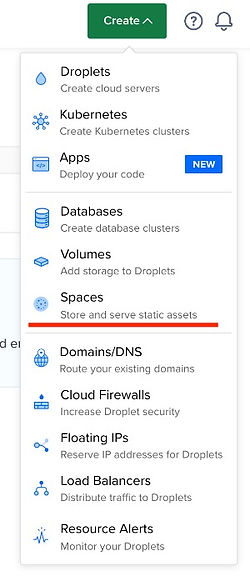
From the green button at the right-hand top corner select CREATE & click Spaces
Choose the data center location
Allow file listing ( choose Restrict if you want this space to be secured with an access key)
Give a unique subdomain name for your space
Select the project
Create the space
How to set up access keys?
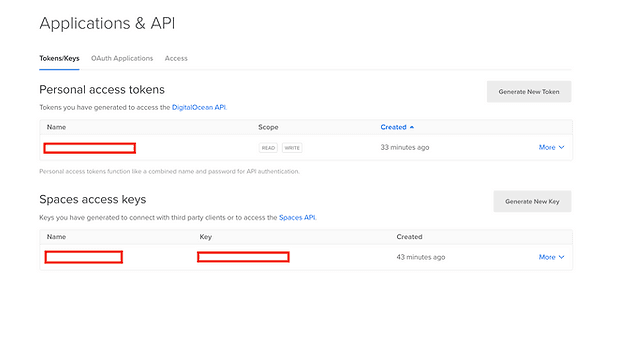
Choose API from the left-hand panel of the digital ocean dashboard then create a personal access token and a space access key.
Copy the keys to a secure vault as they won't be visible once the page is refreshed.
How to set up s3cmd on your Centos droplet?
Read about s3cmd here: Examples of s3cmd 2. x Usage with DigitalOcean Spaces | DigitalOcean Documentation
SSH into your digital ocean Centos 7 droplet
Install s3cmd using the command yum install s3cmd
Configure s3cmd s3cmd --configure
It will prompt for the configuration details
Access Key: <your access key>
Secret Key : <your secret key>
Default Region [US]:<hit enter for default>
S3 Endpoint:<copy the endpoint from the settings tab under spaces>
DNS-style bucket+hostname: port template for accessing a bucket [%(bucket)s.s3.amazonaws.com]:
<copy URL under the space name -- (image reference attached)>
Encryption password:<save the encryption password in a safe vault>
Use HTTPS protocol [Yes]: Yes
Test access with supplied credentials? [Y/n] Y

5. On successful setup you will see the following messages
Please wait, attempting to list all buckets...
Success. Your access key and secret key worked fine :-)
Now verifying that encryption works...
Success. Encryption and decryption worked fine :-)
6. Save settings? [Y/N]: Y
How to copy directories from Centos7 to space?
1. SSH into the Centos7 box
2. Execute the following command
s3cmd put -r <centos7foldername> s3://<spacename>/<foldername>/
How to copy directories from space to Centos7?
1. SSH into the Centos 7 box
2. Execute the following command
s3cmd get -r s3://<spacename>/<foldername>/
Please share your comments or suggestion on the above article at consulting@metquay.com